How to Add an Activities Upsell to Your Checkout with One API
This is the practical guide. It assumes you have a purchase flow, such as a flight, hotel, rental or train booking, and want to add activities and related products to it.
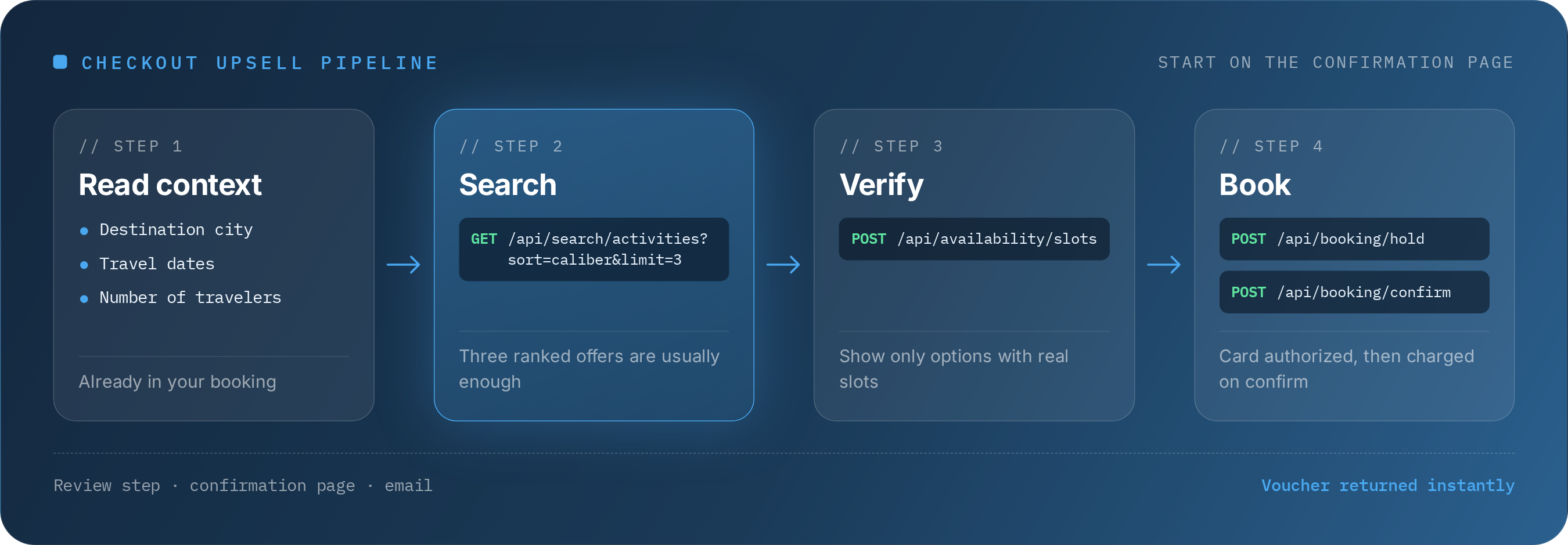
Step 1: Choose where the offer appears
There are three natural placements, and many teams use more than one:
- The review step, just before payment
- The confirmation page, right after payment
- The confirmation email, and the pre-trip reminder that follows
If you are unsure, start with the confirmation page. It is the lowest-risk place: the main purchase is already complete.
Step 2: Read the context you already have
From the booking, take the destination city, the travel dates and the number of travelers. These are all you need to search and check availability.
Step 3: Search for relevant activities
// Top-ranked activities for the booked destination
const res = await fetch(
'https://tourscanner.ai/api/search/activities?city_name=rome&sort=caliber&limit=3',
{ headers: { 'X-API-Key': 'YOUR_API_KEY' } }
)
const { activities } = await res.json()
Sorting by caliber returns the best-ranked activities first, so a short list of three is usually enough.
Step 4: Check live availability
Before you show an offer, call POST /api/availability/slots for the traveler's dates. Show only options with real time slots and prices. Activities from suppliers we don't book in-house return no live slots, with the supplier's booking link where there is one.
Step 5: Build the offer
Use what the API returns: thumbnail, name, rating, price and the time slots from the availability call. Keep it small and clear, with one button. Remember that prices from search and availability do not include your markup, which is added at checkout.
Step 6: Complete the booking
When the traveler accepts, POST /api/booking/hold reserves the activity and creates a Stripe checkout. Send the traveler to the returned checkoutUrl to pay; the card is authorized, not charged. After payment, POST /api/booking/confirm with the Stripe session_id finalizes the booking and returns the voucher and ticket links when the supplier provides them. Show them on screen and send them by email.
Step 7: Track the result
Record impressions, clicks and bookings for each placement. You will need them in the last post of this series.
Start small
One placement, three offers, one destination list. Expand only once you can see what works.